How to Keep Your WordPress Site Secure and Up to Date
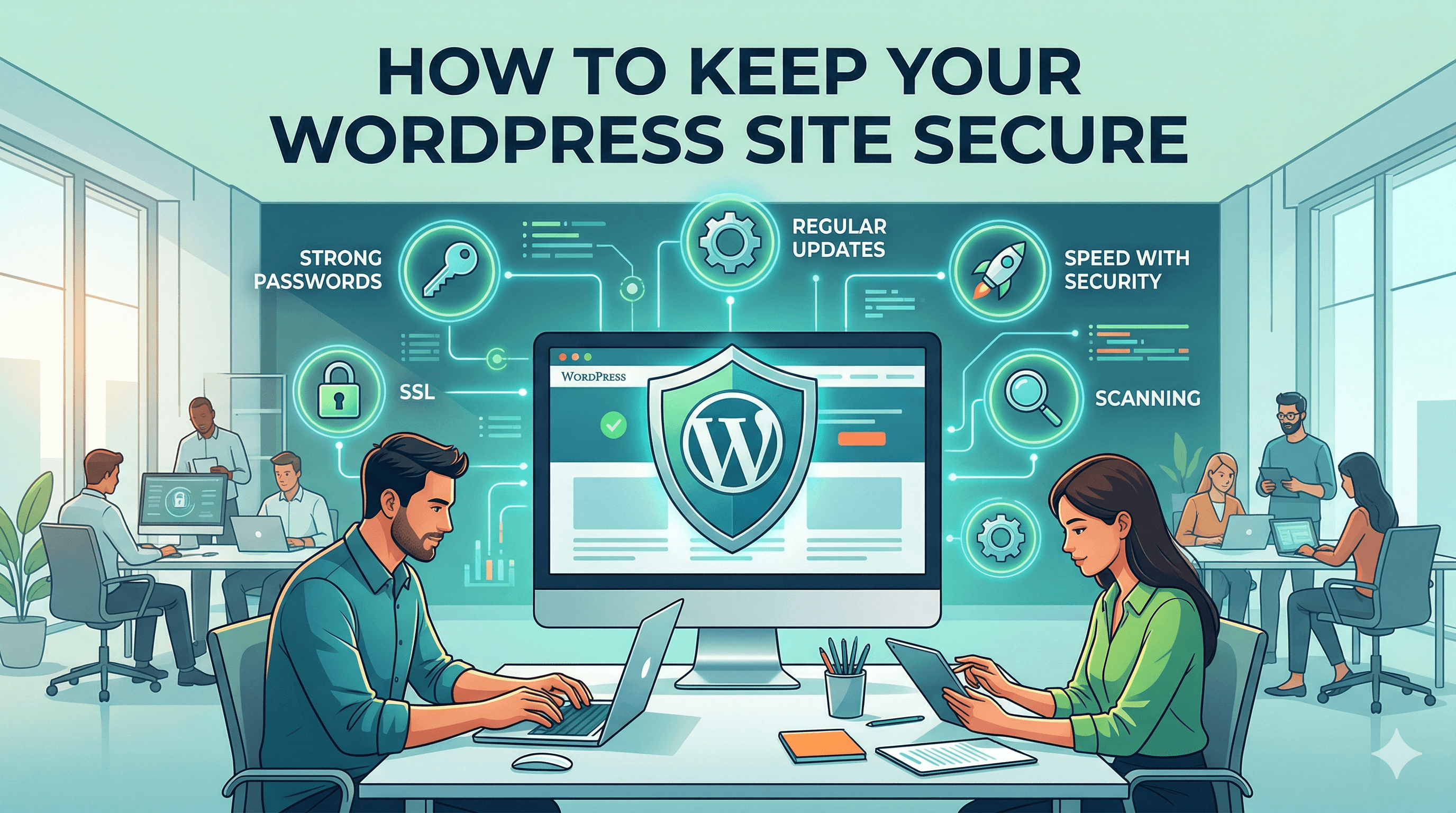
WordPress powers over 40% of the web, and that popularity makes it a prime target for hackers. But here is the good news: most WordPress security breaches are entirely preventable. The majority of successful attacks exploit outdated software, weak passwords, and poor hosting environments. If you commit to a basic maintenance routine, you can keep your WordPress site safe, fast, and fully functional without hiring a full-time developer.
This guide walks you through a practical, no-nonsense maintenance plan that any small business owner can follow. For a broader look at protecting your online presence, see our complete website security guide for small businesses.
Why WordPress Sites Get Hacked
Before we talk about prevention, it helps to understand why WordPress sites get attacked in the first place. Hackers are not typically targeting your business specifically. Most attacks are automated. Bots scan the internet looking for known vulnerabilities in outdated plugins, themes, and WordPress core files. When they find one, they exploit it to inject malware, redirect your visitors to spam sites, or steal sensitive data.
The three most common reasons WordPress sites get compromised are:
Outdated plugins and themes. Every plugin and theme on your site is a potential entry point. When developers discover a vulnerability, they release an update to patch it. If you do not install that update, your site remains exposed. According to Sucuri's annual security report, outdated plugins are the leading cause of WordPress infections year after year.
Weak passwords. If your admin password is something like "password123" or "companyname2024," you are making it easy for attackers. Brute force attacks cycle through thousands of common password combinations per minute. A weak password can be cracked in seconds. Our guide on creating strong passwords to protect your business accounts covers this topic in detail.
Cheap or poorly configured hosting. Budget shared hosting often lacks basic server-level protections. If another site on the same server gets compromised, your site can be affected too. Poor hosting also means slower security patches at the server level and less support when something goes wrong.
Understanding these risks is the first step. The rest of this guide gives you concrete actions to address each one.
The Monthly Maintenance Checklist
Consistency matters more than perfection. Set aside 30 to 60 minutes once a month for WordPress maintenance. Here is what that session should include:
- Back up your entire site (files and database).
- Update WordPress core to the latest version.
- Update all plugins one at a time.
- Update your theme if an update is available.
- Delete any plugins or themes you are not using.
- Review your user accounts and remove any you do not recognize.
- Check your site for broken links or display issues.
- Run a security scan using a plugin like Wordfence or Sucuri.
- Review your site's loading speed using Google PageSpeed Insights.
- Check your uptime monitoring tool for any recent downtime events.
Print this list or save it somewhere you will actually look at it. Treat it like an oil change for your website. It is not glamorous, but skipping it leads to expensive problems. For a deeper dive into safe update procedures and managing your WordPress installation long-term, see our guide on how to manage and update WordPress safely.
How to Update WordPress Core Safely
WordPress core updates come in two flavors: minor updates and major updates. Minor updates (like 6.4.1 to 6.4.2) usually contain security patches and bug fixes. These are low-risk and often install automatically. Major updates (like 6.4 to 6.5) introduce new features and can occasionally cause compatibility issues with plugins or themes.
Here is a safe process for updating WordPress core:
Step 1: Create a full backup. Before you touch anything, back up your files and database. If something breaks, you want a clean restore point.
Step 2: Check plugin and theme compatibility. Visit the WordPress plugin repository and check if your most important plugins have been tested with the latest WordPress version. Most reputable plugin developers update quickly after a major release.
Step 3: Use a staging environment if possible. Many managed WordPress hosts offer one-click staging. This lets you test the update on a copy of your site before applying it to the live version. If you do not have staging available, at minimum make sure your backup is solid.
Step 4: Apply the update. Go to Dashboard, then Updates, and click "Update Now." The process usually takes less than a minute.
Step 5: Test your site. Visit your homepage, key landing pages, contact forms, and checkout pages (if applicable). Make sure everything looks and functions correctly.
If something breaks after an update, restore from your backup and wait a few days for plugin developers to release compatibility fixes. If your site is crashing repeatedly and you are not sure why, our guide on why your WordPress site keeps crashing and how to fix it covers the most common causes and solutions.
How to Update Themes and Plugins Without Breaking Your Site
Plugin and theme updates are where most things go wrong. A single incompatible update can take your site offline or break critical functionality. Here is how to minimize that risk.
Update one plugin at a time. It is tempting to hit "Update All," but resist the urge. If you update five plugins at once and your site breaks, you will have no idea which one caused the problem. Update them individually and check your site after each one.
Read the changelog before updating. Most plugin developers include a changelog that describes what changed. If a plugin jumps from version 2.x to version 3.0, that is a major release that could include breaking changes. Proceed with caution on major version jumps.
Delete plugins you do not use. Every plugin on your site, even deactivated ones, represents a potential security risk. If you installed a plugin six months ago and never activated it, delete it. You can always reinstall it later if you need it. For guidance on which plugins are actually worth keeping, see our list of the best WordPress plugins for small business.
Keep your theme updated, but be careful with customizations. If you have made direct edits to your theme files (not recommended, but common), those changes will be overwritten during an update. Use a child theme for customizations so your changes survive theme updates.
Test after every update. This cannot be overstated. A quick two-minute check of your site after each update can save you hours of troubleshooting later.
Backup Strategies: What to Back Up, How Often, and Where to Store
Backups are your safety net. If your site gets hacked, if an update goes wrong, or if your hosting provider has a catastrophic failure, a recent backup is the difference between a minor inconvenience and a business disaster.
What to back up. A complete WordPress backup includes two things: your files (WordPress core files, themes, plugins, uploads, and any custom code) and your database (all your content, settings, user accounts, and configuration data). You need both to fully restore a site.
How often to back up. The right frequency depends on how often your site changes. If you publish new content daily or run an e-commerce store, back up daily. If your site is relatively static and you publish a few blog posts per month, weekly backups are sufficient. Regardless of your schedule, always create a manual backup before performing any updates.
Where to store your backups. Never store backups only on your web server. If the server is compromised, your backups could be destroyed too. Store backups in at least one off-site location. Good options include cloud storage services like Google Drive, Dropbox, or Amazon S3. Many backup plugins can send backups to these services automatically.
Recommended backup plugins. UpdraftPlus is the most popular free option and supports scheduled backups to multiple cloud destinations. BlogVault and Jetpack Backup (VaultPress) are solid paid options that offer real-time backups and one-click restores.
Security Hardening Basics
Beyond keeping your software updated, there are several simple hardening measures that significantly reduce your attack surface.
Limit login attempts. By default, WordPress allows unlimited login attempts. This makes brute force attacks trivially easy. Install a plugin like Limit Login Attempts Reloaded or Wordfence to restrict the number of failed login attempts from a single IP address. Three to five attempts before a temporary lockout is a reasonable setting.
Disable file editing from the dashboard. WordPress includes a built-in file editor that lets administrators modify theme and plugin files directly from the dashboard. If an attacker gains access to your admin account, this editor gives them the ability to inject malicious code instantly. Disable it by adding this line to your wp-config.php file: define('DISALLOW_FILE_EDIT', true);
Change the default login URL. Every WordPress site uses /wp-admin or /wp-login.php as the login URL by default. Automated bots know this and target these URLs relentlessly. Plugins like WPS Hide Login let you change the login URL to something custom, like /my-secret-login. This simple change stops the vast majority of automated brute force attacks.
Use two-factor authentication. Adding a second factor (like a code from an authenticator app) to your login process means that even if someone steals your password, they still cannot get in. Wordfence and the Google Authenticator plugin both offer free two-factor authentication for WordPress.
Install an SSL certificate. If your site is not already using HTTPS, fix that immediately. SSL encrypts the data transmitted between your visitors' browsers and your server. Most hosting providers offer free SSL certificates through Let's Encrypt.
Set correct file permissions. WordPress files and directories should have specific permission levels to prevent unauthorized access. Directories should be set to 755, and files should be set to 644. Your wp-config.php file should be set to 600 or 640 for extra protection.
When to Use a Managed WordPress Host
If all of this maintenance feels overwhelming, a managed WordPress hosting provider might be the right investment for your business. Managed hosts specialize in WordPress and handle many of these tasks for you.
What managed hosting typically includes. Most managed WordPress hosts provide automatic WordPress core updates, daily backups with easy restores, server-level security (firewalls, malware scanning, DDoS protection), staging environments for testing changes, and performance optimization (caching, CDN integration).
Popular managed WordPress hosts. Cloudways, Kinsta, WP Engine, and Flywheel are all reputable options. Pricing typically starts around $25 to $35 per month, which is more expensive than budget shared hosting but far cheaper than the cost of recovering from a security breach or extended downtime.
When managed hosting is worth the cost. If your website generates revenue, whether through e-commerce, lead generation, or client acquisition, the reliability and security of managed hosting pays for itself. If your site is a simple brochure site that you update once a year, budget hosting with diligent manual maintenance may be sufficient. For a full picture of what ongoing WordPress care actually costs, including hosting, plugins, and developer support, read our WordPress maintenance costs breakdown.
What managed hosting does not cover. Even with managed hosting, you are still responsible for keeping your plugins and themes updated, maintaining strong passwords, and monitoring your site's content for issues. Managed hosting handles the server environment, but you still own the application layer.
Final Thoughts
WordPress security is not complicated, but it does require consistency. The small business owners who get into trouble are usually the ones who build a site, launch it, and never touch it again until something breaks. By spending 30 to 60 minutes per month on basic maintenance, you can prevent the vast majority of security incidents before they happen.
Start with the monthly checklist in this article. If you are behind on updates, take an hour this week to bring everything current. Set up automated backups so you always have a safety net. And if maintaining the site yourself feels like too much, consider investing in managed hosting that takes the technical burden off your plate.
Your website is one of your most valuable business assets. Treat it that way, and it will serve you well for years to come. If you are still evaluating whether WordPress is the right platform for you, our article on whether WordPress is still the best choice for small businesses can help you decide.