Small Office Networking: A Practical Setup Guide
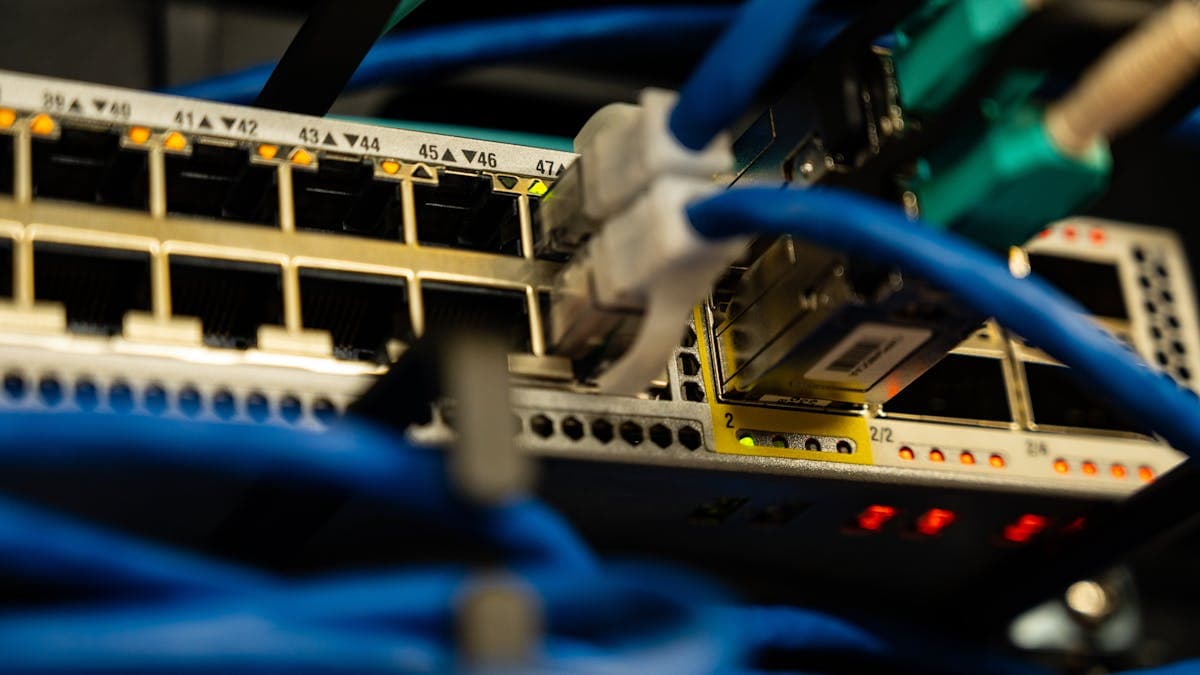
A reliable office network is something you probably do not think about until it stops working. And when it does stop working, everything grinds to a halt. No email, no internet, no access to shared files, no credit card processing, no VoIP phone calls. For a small business, even a few hours of network downtime can mean lost revenue and frustrated customers.
The good news is that setting up a solid small office network is not as complicated as it used to be. Modern networking equipment is designed for ease of use, and you do not need an IT degree to get things running. What you do need is a basic understanding of the components involved, a logical approach to setup, and attention to security from the start.
This guide walks you through everything you need to set up a reliable, secure network for a small office environment.
What You Need for a Small Office Network
Before you start buying equipment, take stock of what your network needs to support. Count the number of devices that will connect to the network: computers, phones, tablets, printers, POS systems, security cameras, and any other networked equipment. Consider which devices need wired connections (desktops, VoIP phones, network printers) and which will use Wi-Fi (laptops, smartphones, tablets).
The core components of a small office network include the following.
Internet connection. This is your link to the outside world. Contact local ISPs and choose a business-grade internet plan with sufficient bandwidth for your team. A general guideline is 25 Mbps per employee for typical office work, with higher bandwidth needed if your business relies heavily on video conferencing, cloud applications, or large file transfers. Business internet plans typically offer better uptime guarantees, static IP addresses, and priority support compared to residential plans.
Modem. The modem connects your office to your ISP's network. Your ISP may provide one, or you can purchase your own. If you use a fiber connection, the ISP will typically install an optical network terminal (ONT) instead.
Router. The router directs traffic between your internal network and the internet. For small offices, a business-grade router from brands like Ubiquiti, Cisco, or Netgear provides better performance, security features, and reliability than consumer models.
Switch. If you have more wired devices than your router has ethernet ports (most routers have four), you need a network switch. Switches come in various sizes (8-port, 16-port, 24-port) and expand the number of wired connections available on your network.
Wi-Fi access point(s). While many routers include built-in Wi-Fi, a dedicated wireless access point (or a mesh Wi-Fi system) provides better coverage and performance, especially in larger offices or buildings with thick walls.
Ethernet cables. Cat6 or Cat6a cables are the current standard for business networking. They support speeds up to 10 Gbps and are backward compatible with older equipment. Buy cables that are long enough to reach from your switch to each wired device, with some extra length for flexibility.
Choosing a Router and Access Point
Your router is the brain of your network, and choosing the right one is the most important hardware decision you will make.
For small offices with fewer than 15 users, a high-quality all-in-one router with built-in Wi-Fi may be sufficient. The Ubiquiti UniFi Dream Router is an excellent choice that combines a router, switch, and Wi-Fi access point in one device, with a user-friendly management interface and enterprise-grade features. The TP-Link Omada series offers similar functionality at a lower price point.
For offices with 15 or more users, or for spaces where Wi-Fi coverage is a challenge, consider a dedicated router paired with separate access points. This allows you to place access points where they are needed for optimal coverage rather than relying on a single device. The Ubiquiti UniFi ecosystem is particularly popular for this approach because you can manage all your networking equipment through a single dashboard.
When choosing a router, look for these features. A built-in firewall with stateful packet inspection protects your network from external threats. VLAN support lets you segment your network (more on this later). Quality of Service (QoS) settings let you prioritize certain types of traffic (like VoIP calls) over others. VPN server capability allows secure remote access to your office network. And automatic firmware updates ensure your equipment stays patched against security vulnerabilities.
Avoid consumer-grade routers from big-box stores. They are designed for homes, not offices. They lack the security features, management tools, and reliability that a business network requires. The price difference between consumer and business-grade equipment is modest, and the performance and security benefits are substantial.
Wired vs. Wireless
In an ideal world, every device in your office would be connected with an ethernet cable. Wired connections are faster, more reliable, more secure, and do not suffer from the interference and congestion that affect Wi-Fi. But we do not live in an ideal world, and running cables to every device is not always practical or affordable.
The best approach for most small offices is a hybrid setup. Connect stationary devices (desktops, VoIP phones, network printers, POS systems, and servers) with ethernet cables for maximum reliability. Use Wi-Fi for mobile devices (laptops, smartphones, tablets) and for areas where running cables is impractical.
If your office is being built or renovated, invest in structured cabling (ethernet ports in the walls) throughout the space. This is much easier and cheaper to do during construction than retrofitting later. Run at least two ethernet drops to each workstation location, plus drops for printer locations, conference rooms, and common areas.
For existing offices where running new cables is not feasible, powerline adapters and MoCA adapters are alternatives that use your building's electrical wiring or coaxial cables to extend your wired network. They are not as fast as direct ethernet, but they are more reliable than Wi-Fi for stationary devices.
Setting Up File Sharing
File sharing is one of the core benefits of having an office network. Instead of emailing files back and forth or using USB drives, your team can access shared files directly from a central location.
Cloud-based file sharing is the simplest option for most small businesses. Services like Google Drive, Microsoft OneDrive, Dropbox Business, and Box provide shared folders that your team can access from any device, anywhere. Files are automatically backed up and synchronized, and you can control who has access to what. For most small businesses, cloud storage is the recommended approach because it requires no additional hardware and provides built-in backup and remote access.
Network-attached storage (NAS) is a small device that connects to your network and provides centralized file storage accessible to everyone on the network. NAS devices from Synology and QNAP offer a wide range of features, including RAID for data redundancy, user access controls, automatic backup, and remote access. A NAS makes sense if you have large files that are impractical to store in the cloud, you need faster local access speeds, you have concerns about storing sensitive data with a third-party cloud provider, or you want to run local backups of your critical data.
Whichever approach you choose, implement a clear folder structure and file naming convention from the start. As your team and file collection grow, disorganized files become increasingly difficult to manage.
Network Printers
Sharing a printer across your office network eliminates the need for individual printers at each workstation and saves money on equipment and supplies. Most modern business printers include built-in ethernet and Wi-Fi connectivity, making network setup straightforward.
For the most reliable connection, connect your printer to the network via ethernet rather than Wi-Fi. Wi-Fi printers can be convenient, but they are more prone to connection drops and slower print speeds. Run an ethernet cable to your printer location and connect it directly to your switch.
Once connected to the network, install the printer on each computer that needs access. On Windows, the Add Printer wizard can typically detect network printers automatically. On macOS, go to System Settings, then Printers and Scanners, then click Add Printer to find and install network printers.
If you have multiple printers (for example, a color printer for marketing materials and a black-and-white laser for everyday documents), set clear defaults on each workstation so employees send jobs to the appropriate printer without thinking about it.
VPN for Remote Access
A Virtual Private Network (VPN) lets you securely access your office network from anywhere. This is essential if your team ever works from home, travels, or needs to access office resources from a client site.
Many business routers include built-in VPN server functionality. The Ubiquiti UniFi Dream Router, for example, supports multiple VPN protocols and can be configured through its web interface. When a team member connects to the VPN from outside the office, their device behaves as if it were on the office network, giving them access to shared files, printers, and internal applications.
For businesses without VPN-capable hardware, cloud VPN services like Tailscale or WireGuard provide an easy alternative. These services create secure connections between devices without requiring complex router configuration. Tailscale, in particular, is popular with small businesses for its simplicity and free tier for small teams.
If your team accesses sensitive business data remotely, a VPN is not optional. Public Wi-Fi networks at coffee shops, hotels, and airports are not secure, and accessing business resources over these networks without a VPN puts your data at risk.
Basic Network Security
An insecure network is an open invitation for attackers, and small businesses are frequent targets because they often have weaker security than larger companies. Implementing basic network security practices protects your data, your customers' information, and your business reputation. For a more comprehensive look at protecting your digital presence, our guide on website security for small businesses covers the broader picture.
Change default passwords. Every router, switch, and access point ships with a default admin password that is publicly known. Change these immediately to strong, unique passwords. This is the single most important security step you can take.
Enable WPA3 encryption. WPA3 is the current standard for Wi-Fi security. If your equipment supports it, use WPA3. If not, use WPA2 at minimum. Never use WEP or leave your Wi-Fi network open (unencrypted).
Create a guest network. If visitors, customers, or contractors need Wi-Fi access in your office, set up a separate guest network that is isolated from your main business network. This prevents guests from accessing your shared files, printers, and other internal resources. Most business routers make this easy to configure.
Segment your network with VLANs. Virtual LANs (VLANs) divide your physical network into separate logical networks. For example, you might put your computers on one VLAN, your security cameras on another, and your POS system on a third. This limits the damage if one segment is compromised, because an attacker who gains access to your camera network cannot reach your business data.
Keep firmware updated. Router and access point manufacturers regularly release firmware updates that patch security vulnerabilities. Enable automatic updates if your equipment supports it, or check for updates monthly.
Use a firewall. Your router's built-in firewall should be enabled and configured to block unsolicited incoming connections. For additional protection, consider a next-generation firewall (NGFW) appliance that can inspect traffic for malware and intrusion attempts.
Implement strong Wi-Fi passwords. Use a long, complex password for your business Wi-Fi network (not your business name, address, or phone number). Change the password when an employee leaves the company or if you suspect it has been shared inappropriately. For more guidance on password practices, check out our tips on strong passwords to protect your business accounts.
Troubleshooting Common Issues
Even a well-configured network will occasionally have problems. Here are the most common issues and how to resolve them.
Slow internet. Run a speed test (speedtest.net) to check if you are getting the bandwidth you are paying for. If speeds are consistently below your plan's rated speed, contact your ISP. If speeds are normal at the router but slow on specific devices, check for Wi-Fi interference, move closer to the access point, or switch to a wired connection.
Wi-Fi dead zones. If certain areas of your office have weak or no Wi-Fi signal, you may need additional access points. Mesh Wi-Fi systems can extend coverage throughout your space. Avoid Wi-Fi range extenders, which often reduce overall network performance.
Printer connectivity issues. If a network printer becomes unreachable, check that it has a valid IP address and is connected to the network. Restarting the printer and checking its network settings usually resolves the issue. Assigning a static IP address to your printer prevents it from changing addresses and losing its connection.
Intermittent connection drops. These are often caused by interference (other Wi-Fi networks, microwaves, Bluetooth devices), overloaded equipment, or faulty cables. Use your router's management interface to check for channel congestion and switch to a less crowded channel.
Planning for Growth
When setting up your network, think about where your business will be in two to three years, not just where it is today. Running additional cables, adding switch ports, and expanding Wi-Fi coverage is much easier and cheaper if you plan for it from the start.
Buy a switch with more ports than you currently need. Run extra ethernet cables to each location. Choose a router and access point system that can scale as you add more devices and users. These small investments upfront save significant time and money when your business grows.
A well-designed office network is invisible when it works, and you want it to stay that way. Invest the time to set it up properly, secure it from the start, and maintain it regularly. Your team, your customers, and your bottom line will all benefit from a network that just works.