Website Heatmap Tools for Small Businesses
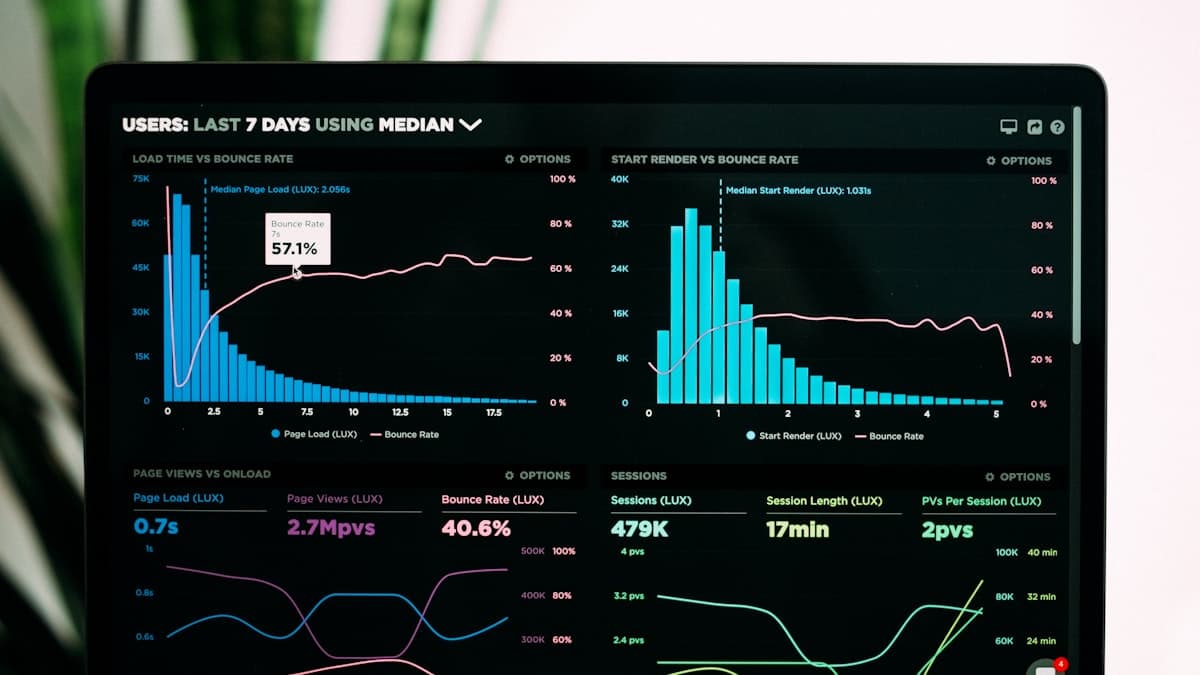
You check your Google Analytics and see that people are visiting your website but not converting. The numbers tell you what is happening (visitors arrive and leave without taking action), but they do not tell you why. Are visitors missing your call-to-action button? Is something confusing about your navigation? Are they reading your content or skipping past it entirely? This is where heatmap tools become invaluable. They transform abstract analytics data into visual maps of actual human behavior, showing you exactly where visitors click, how far they scroll, and what catches their attention. For small businesses, heatmaps are one of the most affordable and accessible ways to understand how real people experience your website.
What Are Heatmaps and How Do They Work
Heatmaps are visual representations of data where values are depicted by color. On a website heatmap, warm colors (red, orange, yellow) indicate areas of high activity, while cool colors (blue, green) indicate areas of low activity. The concept is borrowed from thermal imaging, and it is intuitive enough that anyone can read a heatmap without training.
Click heatmaps show where people click. Every click on your page is recorded and displayed as a colored overlay. Areas with many clicks glow red. Areas with few clicks appear blue or remain cold. Click heatmaps reveal which elements attract attention, which links get used, and where visitors click on non-clickable elements (indicating confusion or missed opportunities).
Scroll heatmaps show how far people scroll. These heatmaps use color gradients to show what percentage of visitors reach each section of your page. The top of the page is always red (100% of visitors see it), and the color gradually cools as you move down the page. Scroll heatmaps reveal whether visitors are actually reaching your important content, your pricing section, or your call-to-action at the bottom of the page.
Move heatmaps track mouse movement. On desktop devices, mouse movement correlates roughly with eye movement. Move heatmaps show where visitors hover their cursor, indicating which areas of the page they are reading or considering. While not as directly actionable as click data, move heatmaps provide insight into visitor attention patterns.
Session recordings capture individual visits. While technically not heatmaps, session recordings are typically bundled with heatmap tools. They record individual visitor sessions as videos that you can replay. You see exactly what the visitor saw, where they moved their mouse, what they clicked, and where they got stuck. These recordings provide the qualitative "why" behind the quantitative heatmap data.
For a broader understanding of how these tools fit into your analytics strategy, check out our complete guide to website analytics.
Free Heatmap Tools Worth Using
Several heatmap tools offer genuinely useful free plans that are sufficient for most small business websites. Here are the best options that will not cost you anything to get started.
Microsoft Clarity. This is the standout free option and the one most small businesses should start with. Microsoft Clarity is completely free with no traffic limits, no feature restrictions, and no paywalls. It provides click heatmaps, scroll heatmaps, session recordings, and an insights dashboard that automatically identifies user frustration signals like rage clicks, dead clicks, and excessive scrolling. The tool integrates with Google Analytics, is GDPR-compliant with proper configuration, and requires only a small JavaScript snippet to install. For a free tool, the quality and depth of data are remarkable.
Hotjar (Free Plan). Hotjar's free plan includes heatmaps for up to 35 daily sessions and basic session recordings. While the session limit is restrictive for higher-traffic sites, it is perfectly adequate for small business websites with modest traffic. Hotjar also includes a feedback widget and basic survey functionality on the free plan, adding qualitative data collection to its toolkit.
PostHog (Free Tier). PostHog is an open-source analytics platform with a generous free tier that includes session recordings and basic heatmap functionality. It is more technically oriented than Clarity or Hotjar, making it a better fit for businesses with some technical comfort. The free tier allows up to 15,000 sessions per month, which covers most small business websites.
Smartlook (Free Plan). Smartlook offers a free plan with session recordings, basic heatmaps, and event tracking. The free plan stores data for one month and allows up to 3,000 sessions. It is particularly strong for mobile app analytics, making it a good choice if you have both a website and a mobile app.
Yandex Metrica. The Yandex analytics platform includes heatmaps and session recordings as built-in features, all completely free. While Yandex is a Russian company, the tool works globally and supports English. It offers click maps, scroll maps, link maps, and form analytics. The privacy implications should be evaluated for your specific audience and market.
Affordable Paid Options for Growing Businesses
If you outgrow the free tools or need more advanced features, these paid options offer strong value for small business budgets.
Hotjar (Plus Plan). Starting at around $32 per month, Hotjar's Plus plan removes the daily session limit and provides more extensive data storage. For businesses that need continuous heatmap data and unlimited session recordings, this is a reasonable investment. Hotjar's interface is particularly user-friendly, making it a good choice for non-technical users.
Lucky Orange. Starting at around $32 per month for up to 500 sessions, Lucky Orange combines heatmaps, session recordings, live chat, surveys, and form analytics in a single platform. The live visitor view feature lets you see who is on your site right now and even initiate a chat with them. It is especially popular with e-commerce businesses.
Crazy Egg. Founded by conversion optimization expert Neil Patel, Crazy Egg starts at around $29 per month and focuses on heatmaps, scroll maps, A/B testing, and session recordings. The A/B testing integration is particularly useful because you can identify problems with heatmaps and test solutions without switching to a different tool.
FullStory. While FullStory's pricing is oriented toward larger businesses, their free tier (up to 1,000 sessions per month) can work for small businesses. FullStory's digital experience intelligence goes beyond basic heatmaps to provide frustration scoring, error detection, and detailed user journey mapping. It is more sophisticated than most alternatives, but the learning curve is steeper.
Mouseflow. Starting at around $31 per month for up to 5,000 recordings, Mouseflow provides heatmaps, session recordings, form analytics, and funnels. The form analytics feature is particularly detailed, showing field-level drop-off data that helps you optimize specific form elements. It also generates attention heatmaps that estimate where visitors are looking based on scroll and pause behavior.
Setting Up Heatmaps Correctly
Installing a heatmap tool is straightforward, but setting it up correctly ensures you get reliable, actionable data. Here are the steps to follow.
Install the tracking code on all pages. Most heatmap tools provide a JavaScript snippet that you add to your website's header. If you use a tag manager like Google Tag Manager, you can deploy the tracking code through it without touching your website's source code directly.
Configure privacy settings before collecting data. Heatmap tools record visitor behavior, which means you need to ensure compliance with privacy regulations like GDPR and CCPA. Configure the tool to mask sensitive information (credit card numbers, personal data in forms), exclude pages with sensitive content, and respect do-not-track browser settings where required.
Set up heatmaps for your most important pages first. You do not need heatmaps on every page of your website immediately. Start with the pages that matter most for conversions: your homepage, top landing pages, pricing page, contact page, and key service or product pages. These are the pages where behavioral insights will have the most direct impact on revenue.
Wait for sufficient data before analyzing. A heatmap based on 50 visitors is unreliable. Aim for at least 500 to 1,000 sessions per page before drawing conclusions. For lower-traffic pages, this might take several weeks or even a couple of months. Patience produces better insights.
Separate desktop and mobile heatmaps. Visitor behavior differs significantly between devices. A click that makes sense on desktop might be a frustrated tap on mobile. Most heatmap tools allow you to filter data by device type. Always analyze desktop and mobile heatmaps separately.
Reading Click Heatmaps: What to Look For
Click heatmaps are the most immediately actionable type of heatmap. Here is how to interpret them effectively.
Clicks on non-clickable elements indicate opportunities. If visitors are clicking on images, text, or sections that are not actually links or buttons, they expect those elements to be interactive. Consider making those elements clickable. If people are clicking on a product image that does not link anywhere, add a link to the product page. These "dead clicks" represent missed conversion opportunities.
Ignored buttons reveal design or placement problems. If your call-to-action button shows minimal click activity while surrounding elements receive more clicks, the button may not be visually prominent enough, may be poorly positioned, or may have copy that does not resonate. This data gives you specific areas to optimize.
Click distribution reveals attention patterns. On a page with multiple links or buttons, the click heatmap shows you the relative popularity of each. If your primary CTA receives fewer clicks than a secondary link, your visual hierarchy needs adjustment. The most important action should receive the most clicks.
Navigation click patterns expose usability issues. Heatmap data on your navigation menu shows which links get used and which are ignored. Menu items with zero clicks may be unnecessary, poorly labeled, or hidden behind too many levels. Simplifying your navigation based on actual usage data improves usability for everyone.
Form field interactions reveal friction points. On pages with forms, click heatmaps show which fields visitors interact with first, which they skip, and which they click on multiple times (indicating confusion or frustration). This data directly informs form optimization efforts.
Reading Scroll Heatmaps: Understanding Content Engagement
Scroll heatmaps tell you whether visitors are actually consuming your content. This is critical for pages where important information (pricing, CTAs, key messages) appears below the fold.
Identify the "fold line" for your audience. The fold line is where the visible screen ends and scrolling begins. Scroll heatmaps show you exactly where this line falls on different devices. Make sure your most critical content and CTAs are above this line, or at minimum, visible enough to encourage scrolling.
Look for sharp drop-off points. If 80% of visitors see the top of your page but only 20% reach the middle section, there is a significant drop-off point where people stop scrolling. This usually indicates that the content above that point is not compelling enough to keep visitors engaged. The content at the drop-off point may be boring, confusing, or perceived as the end of the relevant information.
Check if CTAs are in visible zones. If your primary CTA sits in an area that only 30% of visitors reach, 70% of your visitors never see it. Either move the CTA to a higher-traffic zone or add additional CTAs earlier in the page. Scroll heatmaps make CTA placement decisions data-driven rather than guesswork.
Measure content section engagement. Compare the scroll depth of different content sections. If visitors consistently scroll through your features section but drop off at the pricing section, the features content is engaging while the pricing presentation needs work. This section-by-section analysis reveals which parts of your page are working and which are not.
Compare scroll patterns across page types. Blog posts, service pages, and landing pages will have different scroll patterns. Blog readers expect to scroll deeply. Landing page visitors may not. Understanding the expected behavior for each page type helps you set realistic engagement benchmarks.
Using Session Recordings for Deep Insights
Session recordings provide the narrative behind your heatmap data. While heatmaps show aggregate patterns, recordings show individual visitor journeys. Together, they create a complete picture of user behavior.
Watch recordings with specific questions in mind. Randomly browsing recordings is interesting but inefficient. Instead, watch recordings from visitors who abandoned your form, visitors who left your pricing page without converting, or visitors who rage-clicked on a specific element. Focused observation produces focused insights.
Look for patterns of confusion. When multiple visitors pause, hover uncertainly, or click aimlessly in the same area, that area is causing confusion. Maybe the layout is ambiguous, the copy is unclear, or the navigation does not match expectations. Confusion patterns are strong signals for improvement.
Note the device and browser context. Some usability issues only appear on specific devices or browsers. A recording of a visitor struggling on a particular mobile browser might reveal a rendering issue that your testing did not catch. Always note the technical context when you spot a problem.
Record and categorize your observations. As you watch recordings, keep a log of issues and observations. Categorize them by type (navigation confusion, CTA visibility, form friction, content engagement, technical issues) and by severity (critical, important, minor). This log becomes your prioritized list of improvements.
Share recordings with stakeholders. A two-minute video of a real visitor struggling with your website is more persuasive than any number of analytics charts. If you need to convince a business partner, web designer, or developer to make changes, showing them actual visitor behavior is incredibly effective.
If you are still setting up your analytics foundation, this guide on setting up Google Analytics for small businesses will help you get the quantitative data side right.
Turning Heatmap Insights into Website Improvements
Data without action is just entertainment. Here is how to translate heatmap insights into concrete improvements that increase conversions.
Prioritize findings by potential impact. Not every heatmap insight is equally important. A dead-click zone that 500 visitors per month interact with is higher priority than one that 20 visitors touch. Focus your improvement efforts on the issues that affect the most visitors and occur on your most important pages.
Create a hypothesis for each change. Before implementing a fix, write down what you expect to happen. "I believe that moving the CTA button from below the fold to above the fold will increase clicks by at least 30%, based on scroll heatmap data showing that 60% of visitors never scroll past the current CTA position." This discipline ensures you are making changes for data-backed reasons.
Implement changes one at a time. If you make multiple changes simultaneously, you will not know which one affected your results. Change one element, measure the impact using your heatmap data and conversion metrics, then move to the next change.
Re-run heatmaps after changes. After implementing a change, collect fresh heatmap data on the updated page. Compare the new heatmap with the old one to verify that the change had the intended effect. Did clicks on the CTA increase? Did scroll depth improve? Did the confusion pattern disappear? This feedback loop is essential for continuous improvement.
Document your process and results. Keep a record of what you found, what you changed, and what happened. Over time, this documentation reveals patterns about your audience's behavior that inform future decisions. It also prevents you from re-testing things you have already learned.
Common Heatmap Mistakes to Avoid
Heatmap tools are powerful, but they can lead you astray if you are not careful about how you interpret the data.
Drawing conclusions from insufficient data. A heatmap based on 100 visits might show patterns that disappear with 1,000 visits. Make sure you have collected enough data before making changes. The exact threshold depends on your page's traffic and conversion rate, but more data is always better.
Ignoring device segmentation. A combined desktop-and-mobile heatmap is misleading because the two audiences behave differently. Always filter by device type and analyze each separately. What looks like a problem on a combined heatmap might only affect one device type.
Confusing correlation with causation. If visitors who click on your testimonial section convert at a higher rate, it does not necessarily mean the testimonials caused the conversion. It might mean that visitors who are already inclined to convert are the ones who read testimonials. Be careful about assuming causal relationships from observational data.
Focusing only on clicks and ignoring context. A high click count on a specific element is not inherently good or bad. Clicks on your CTA button are positive. Clicks on a confusing image that visitors expect to be a link are negative. The context of the click matters as much as the frequency.
Neglecting to act on the data. The biggest mistake is collecting heatmap data and then doing nothing with it. Heatmaps are only valuable if they lead to improvements. Set a regular schedule for reviewing your heatmap data and implementing changes, even if the schedule is just once per month.
Building a Continuous Improvement Process with Heatmaps
The real power of heatmap tools emerges when you use them as part of a continuous improvement cycle rather than a one-time analysis. Here is how to build that process.
Collect baseline heatmaps for all key pages. Before making any changes, generate heatmaps for your most important pages. These baselines give you a reference point for measuring improvement.
Review heatmaps monthly. Set a recurring calendar item to review your heatmap data at least once per month. Look for new patterns, check on previously identified issues, and note any changes in visitor behavior.
Combine heatmap insights with analytics data. Heatmaps tell you what visitors are doing. Analytics tell you who they are and where they came from. Combining both data sources gives you a more complete understanding. For example, if your heatmap shows low CTA engagement on a page that receives most of its traffic from social media, the issue might be a mismatch between the social media audience's expectations and your page's message.
Use heatmaps to validate design decisions. Before and after any major design change, compare heatmaps. This validates that your design changes are improving (not harming) the user experience. It also provides evidence to support future design decisions.
Share insights across your team. If you work with a web designer, a copywriter, or a marketing consultant, share heatmap data with them. Visual data is easy for anyone to understand, and it gives your collaborators specific, evidence-based direction for their work.
Heatmap tools give small businesses a superpower that was once only available to companies with dedicated UX research teams: the ability to see your website through your visitors' eyes. Whether you start with a completely free tool like Microsoft Clarity or invest in a paid platform as your needs grow, the insights you gain will directly inform decisions that improve your website's performance. Start with your highest-traffic, most important pages, collect enough data to see clear patterns, and then act on what you learn. The improvements compound over time, turning visitor behavior data into a genuine competitive advantage for your business. For a more comprehensive approach to getting more leads from your website, combine heatmap insights with the other optimization strategies covered in our guides.