Backup Strategy for Small Business Websites
Your website represents hundreds or thousands of hours of work: content, design, customer data, configurations, and business logic. Without a backup strategy, all of that can disappear in an instant. A server failure, a hacking incident, a botched update, or even an accidental deletion can take your site offline and erase months of effort. A solid backup system means that no matter what happens, you can restore your site and get back to business.
This guide covers everything you need to know about backing up your small business website, from understanding backup types to implementing the 3-2-1 rule and testing your backups to make sure they actually work when you need them.
Why Backups Matter More Than You Think
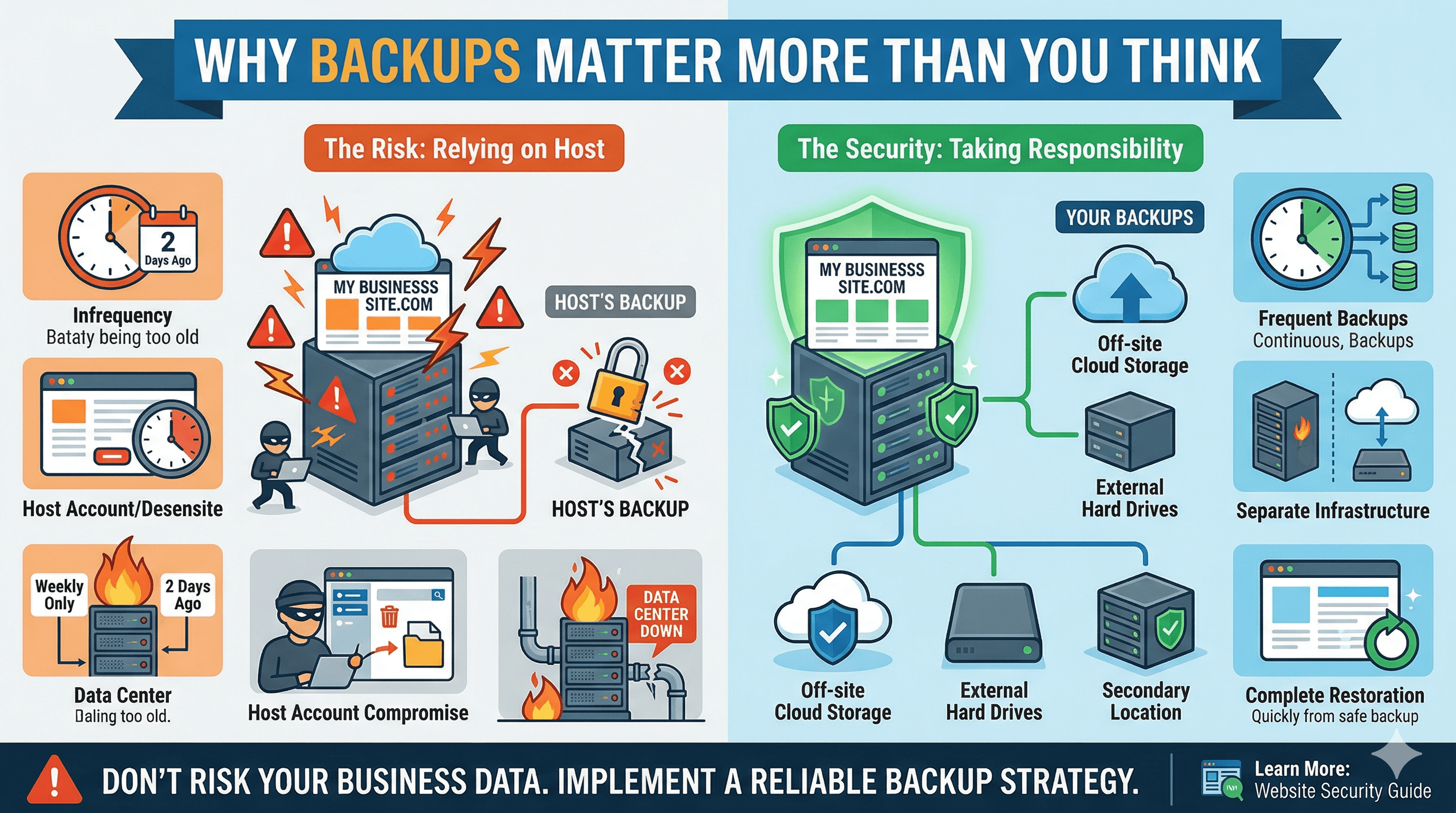
Most small business owners think backups are something their hosting provider handles. Some hosting providers do include backups, but relying solely on your host is risky for several reasons.
First, hosting provider backups may not be as frequent or as comprehensive as you assume. Some hosts only back up weekly, some only back up the database (not your files), and some only keep one or two backup copies. If a problem occurred three days ago and your host only keeps daily backups for 48 hours, your backup is already infected or corrupted.
Second, if your hosting account is compromised or suspended, you may lose access to the host's backups as well. If an attacker gains access to your hosting panel, they could delete the backups stored there along with your live site.
Third, hosting providers occasionally have their own failures. Data center incidents, while rare, do happen. If your only backups are stored on the same infrastructure as your live site, a data center failure could take both out simultaneously.
The businesses that recover quickly from disasters are the ones that treated backups as their own responsibility, not an afterthought they delegated to their hosting provider. For a broader look at website security practices, including how backups fit into your overall security posture, read our website security guide for small businesses.
Understanding Backup Types
Not all backups are the same. Understanding the different types helps you design a strategy that balances thoroughness with efficiency.
Full Backups
A full backup is a complete copy of your entire website: all files, your database, your media uploads, your configurations, your themes, your plugins, and everything else. Full backups are the most comprehensive and the simplest to restore from. The downside is that they are large (especially if your site has a lot of images or media) and take longer to create.
Full backups should be the foundation of your strategy. Even if you use incremental backups for daily protection, you need regular full backups as a baseline.
Incremental Backups
An incremental backup only captures the changes made since the last backup. If you run a full backup on Sunday and an incremental backup on Monday, the Monday backup only contains files and database entries that changed on Monday. This makes incremental backups faster to create and smaller to store.
The downside is that restoring from incremental backups is more complex. You need the full backup plus every incremental backup since then, applied in order. If any backup in the chain is corrupted, the restoration may fail.
Database Backups
A database backup captures only your site's database, which stores your content (posts, pages, products), user accounts, settings, and configurations. For WordPress and similar CMS platforms, the database contains most of what makes your site unique. Files (themes, plugins, images) can often be re-downloaded from their original sources.
Database-only backups are fast and small, making them ideal for frequent scheduling (hourly or every few hours for active sites). They complement your full backups by providing more granular recovery points for your content.
File Backups
A file backup captures everything on your server's file system: your CMS files, theme files, plugin files, uploaded images and media, custom code, and configuration files. File backups combined with database backups give you the same coverage as a full backup, with the flexibility to restore them independently.
How Often Should You Back Up?
Your backup frequency should match how often your site changes and how much data you can afford to lose.
For a static brochure site that you update once a month, weekly full backups are sufficient. If the site goes down, you lose at most a week of changes, and since changes are infrequent, the impact is minimal.
For a site with an active blog that publishes several times per week, daily database backups and weekly full backups are appropriate. This ensures you never lose more than a day's worth of content.
For an e-commerce site processing orders daily, you need more frequent backups. Hourly database backups and daily full backups are the minimum. Some e-commerce sites use real-time database replication so that no transaction data is ever lost.
For any site, take a manual backup before making significant changes: updating your CMS core, changing themes, adding new plugins, or modifying custom code. This gives you an immediate rollback point if the change breaks something.
Your hosting provider plays a role in your backup capabilities and frequency. Some managed hosting plans include daily automatic backups with one-click restore, which can simplify your backup strategy significantly. Our review of the best web hosting for small businesses compares hosting providers on their backup features, among other criteria. You can also find hosting-specific guidance in our article on how to choose web hosting for small business.
The 3-2-1 Backup Rule
The 3-2-1 rule is the gold standard for backup strategy, used by IT professionals and recommended by data recovery experts worldwide. It is simple: keep three copies of your data, on two different types of storage media, with one copy stored offsite.
Three copies means your live website (copy one), a local or on-server backup (copy two), and a remote backup stored in a different physical location (copy three). If any single copy is lost or corrupted, you still have two others.
Two different storage types means not keeping all your backups on the same infrastructure. If your live site and your backup are both on the same server, a server failure destroys both. Store backups on a different server, in cloud storage, or on a local device.
One offsite copy means at least one backup should be geographically separate from your live site. If your site is hosted in a data center in Virginia, your offsite backup should be stored somewhere other than that same data center. Cloud storage services like Amazon S3, Google Cloud Storage, Backblaze B2, or Dropbox make offsite storage simple and affordable. If you are evaluating cloud storage providers for your backup destinations, our best cloud storage for small businesses review compares the top options on price, reliability, and features.
For most small businesses, a practical implementation of the 3-2-1 rule looks like this. Your live website runs on your hosting server (copy one). Your backup plugin or hosting provider creates automatic backups stored on the server or a connected storage service (copy two). Your backup plugin also sends a copy to cloud storage like Google Drive, Dropbox, or Amazon S3 (copy three, offsite).
Backup Tools and Solutions
The right backup tool depends on your platform and your technical comfort level.
For WordPress sites, several backup plugins provide reliable, automated backups. UpdraftPlus is the most popular free option. It supports scheduled backups, stores copies on cloud services (Google Drive, Dropbox, S3, and others), and makes restoration straightforward. The premium version adds incremental backups and more storage destinations. BlogVault is a premium option ($89 per year and up) that creates backups on its own servers, which means your site's performance is not affected during backups. It also includes staging, migration, and security features. Jetpack Backup (now called VaultPress) provides real-time backups for WordPress.com and Jetpack-connected sites.
For Squarespace, Wix, and other website builders, backup options are more limited because you do not have direct server access. These platforms maintain their own backups, but you should regularly export your content as an additional precaution. Export blog posts, product data, and customer lists. Save copies of all images and media files. Document your site structure and settings in case you need to rebuild.
For custom-built sites, use server-level backup tools. Most hosting control panels (cPanel, Plesk) include backup utilities. You can also use command-line tools like rsync for file backups and mysqldump for database backups, automated through cron jobs.
Testing Your Backups
A backup that does not work is not a backup. Testing is the step that most businesses skip, and it is the step that matters most. An untested backup gives you a false sense of security. You will not discover it is corrupted or incomplete until the moment you desperately need it.
Test your backups at least quarterly. The testing process is straightforward.
First, download a recent backup file. Verify that it is the expected size (a backup that is suspiciously small may be incomplete) and that it downloaded without errors.
Second, restore the backup to a test environment. Most hosting providers offer staging sites or test environments where you can restore a backup without affecting your live site. If your host does not provide staging, you can set up a local development environment on your computer using tools like Local (for WordPress) or XAMPP.
Third, verify the restored site. Check that all pages load correctly, images display properly, forms work, and your database content (posts, products, customer records) is intact. Navigate through the entire site as if you were a visitor.
Fourth, document the results. Note any issues you found and fix your backup configuration to address them. Record how long the restoration process took, so you know what to expect in a real emergency.
If restoration fails or the restored site has problems, investigate immediately. Common issues include incomplete backups (check your backup plugin settings to make sure all files and tables are included), corrupted backup files (check your storage for file integrity and consider more frequent backups), and incompatible PHP or MySQL versions between your backup and your test environment.
For situations where you need to restore from a backup after a security incident, our guide on how to recover a hacked website walks through the full recovery process, including how to use backups safely when your site has been compromised.
Backup Retention: How Long to Keep Backups
Keeping every backup forever is impractical (storage costs add up) and unnecessary. But keeping only the most recent backup is dangerous because you might not discover a problem until days or weeks after it occurred.
A sensible retention policy for most small businesses looks like this. Keep daily backups for 30 days. This gives you a month of granular recovery points. Keep weekly backups for three months. If you discover a problem that has been lurking for a while, you can go back further. Keep monthly backups for one year. Annual retention gives you a safety net for long-term issues like SEO spam that went undetected.
Adjust these retention periods based on your storage budget and how critical your website data is. E-commerce sites with customer order histories may need longer retention. Simple brochure sites may need less.
Automating Your Backup Strategy
Manual backups are better than no backups, but they are unreliable because they depend on you remembering to do them. Automate your backup process so it runs without your intervention.
Set up your backup plugin or hosting backup tool to run on a schedule. Configure it to store copies in at least two locations (following the 3-2-1 rule). Set up email notifications so you are alerted if a backup fails. Add a monthly calendar reminder to verify that backups are running and to test a restoration.
Most backup tools allow you to configure all of this in under 30 minutes. Once it is set up, your backup system runs in the background, protecting your business every day without requiring your attention.
Your Backup Strategy Checklist
Use this checklist to build and maintain your backup system.
Choose a backup tool appropriate for your platform. Configure automated full backups (weekly for most sites, daily for active or e-commerce sites). Configure automated database backups (daily for most sites, hourly for e-commerce). Set up at least two storage locations, including one offsite. Configure retention periods (30 days of dailies, three months of weeklies, one year of monthlies). Enable failure notifications via email. Test a backup restoration quarterly. Take a manual backup before any major site changes. Document your backup configuration and restoration process so anyone on your team can restore the site in an emergency.
Your backup strategy is your insurance policy against every conceivable website disaster. The time and minimal cost you invest in setting it up will seem insignificant compared to the alternative: starting from scratch because a server crash, a hack, or a simple mistake wiped out everything you built.