How to Recover a Hacked Small Business Website
Discovering that your website has been hacked is one of the most stressful experiences a small business owner can face. Your first instinct might be panic, but a calm, systematic response is what will get your site back online safely. Thousands of small business websites are compromised every day, and the vast majority can be fully recovered if you follow the right steps.
This guide walks you through the entire recovery process, from identifying that a hack has occurred to cleaning the infection, restoring your site, and hardening your defenses to prevent future attacks.
How to Identify a Website Hack
Hacks do not always announce themselves with a dramatic defaced homepage. Many compromises are subtle, designed to go undetected for as long as possible so the attacker can exploit your site for spam, phishing, or malware distribution.
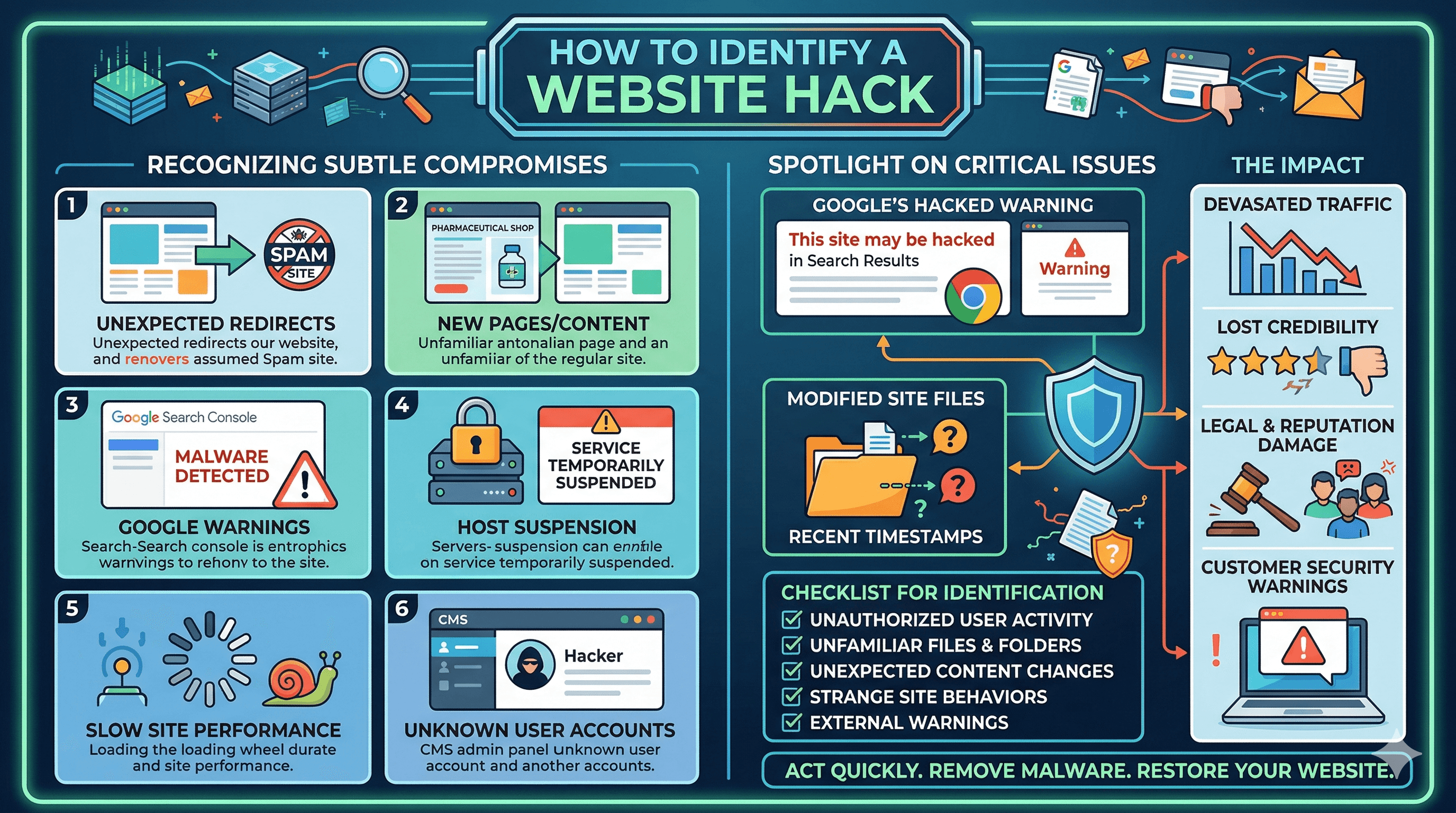
Common signs that your site has been hacked include unexpected redirects (visitors are sent to a different website, often a spam or phishing site), new pages or content you did not create (especially pages selling pharmaceuticals, gambling, or counterfeit goods), Google Search Console warnings about malware or hacked content, your hosting provider suspending your account, dramatically slower site performance, unknown user accounts in your CMS admin panel, modified files with recent timestamps you do not recognize, and customer complaints about security warnings when visiting your site.
If Google has detected the hack, you may see a "This site may be hacked" warning in search results or a red interstitial warning in Chrome. These warnings devastate your traffic and credibility, making fast recovery critical.
Small business websites are targeted far more often than most owners realize. The attacks are usually automated, scanning thousands of sites for known vulnerabilities rather than targeting your business specifically. Our article on how small business websites get hacked every day explains the most common attack vectors and why small sites are frequent targets.
Immediate Response: The First 60 Minutes
Once you confirm (or strongly suspect) a hack, take these steps immediately.
First, do not delete anything yet. Your instinct might be to start removing suspicious files, but you need to understand the scope of the hack before making changes. Deleting files randomly can make the situation worse or destroy evidence you need for recovery.
Second, change all passwords. Change your CMS admin password, your hosting control panel password, your FTP/SFTP credentials, your database password, and the passwords for any email accounts associated with the site. Use strong, unique passwords for each one. Our guide on strong passwords and protecting your business accounts explains what "strong" actually means and how to manage multiple complex passwords.
Third, take your site offline if possible. Most hosting providers have an option to temporarily disable your site or put it in maintenance mode. This prevents the hack from affecting visitors and stops the attacker from continuing to use your site while you work on recovery. If you cannot take it fully offline, at least remove any redirects that are sending visitors to malicious sites.
Fourth, document everything. Take screenshots of any suspicious pages, content, or error messages. Note the date and time you discovered the hack. Save copies of any email notifications from Google, your hosting provider, or security tools. This documentation may be needed for reporting the incident and for insurance claims.
Fifth, contact your hosting provider. They may have additional information about the hack, and many hosting providers offer malware removal assistance (sometimes for free, sometimes for a fee). They can also help you identify when the compromise occurred by reviewing server logs.
Assessing the Damage
Before you start cleaning, you need to understand what happened and how extensive the damage is. This assessment guides your cleanup strategy and helps prevent reinfection.
Scan your site with a security tool. Free options include Sucuri SiteCheck (sitecheck.sucuri.net), which scans your site remotely for malware, blacklisting, and errors. For WordPress sites, install Wordfence and run a full scan. These tools identify malicious files, backdoors, and other indicators of compromise.
Check your server access logs (your hosting provider can help you find these) to identify when the hack occurred, which files were modified, and how the attacker gained access. Look for unusual login attempts, file uploads from unknown IP addresses, and modifications to core CMS files.
Review your Google Search Console account. The Security Issues report will list any malware or hacked content Google has detected. The URL Inspection tool can show you exactly which pages are affected. The Pages report may reveal new URLs that the attacker created.
Check if your site has been blacklisted. Google Safe Browsing, Norton Safe Web, and McAfee SiteAdvisor all maintain blacklists. Being blacklisted means browsers will warn visitors away from your site, and it can take days or weeks to get removed after you clean the infection.
Assess the impact on your data. Were customer records compromised? Was payment information exposed? If you store any personal customer data and it may have been accessed, you may have legal obligations to notify affected individuals depending on your jurisdiction.
Cleaning the Infection
The cleanup process depends on the type of hack and the platform your site runs on. Here is a general approach that works for most situations.
If you have a clean backup from before the hack occurred, restoring from that backup is usually the fastest and most reliable cleanup method. This is why regular backups are so critical (more on that later). Restore the backup, then immediately update all software, change all passwords, and patch the vulnerability the attacker used to get in.
If you do not have a clean backup, you will need to manually clean the infection. For WordPress sites, start by replacing all core WordPress files with fresh copies from wordpress.org. Do not touch the wp-content folder or wp-config.php file yet. Then replace all plugin and theme files with fresh copies from their original sources. This eliminates any malicious code injected into core files.
Next, examine your wp-content folder for suspicious files. Look for PHP files in your uploads directory (there should not be any), files with obfuscated code (long strings of encoded characters), and files with recent modification dates that you did not change. Remove any files you cannot identify as legitimate.
Check your database for injected content. Hackers often inject spam links, hidden content, or malicious scripts into your database. Look for unfamiliar user accounts (especially admin accounts), posts or pages you did not create, and suspicious code in your widgets, post content, or options table.
For non-WordPress sites, the same principles apply. Replace core platform files, examine your content and uploads for suspicious additions, and check your database for injections. If you are using a website builder like Squarespace or Wix, contact their support team directly, as they manage the infrastructure and can assist with cleanup.
After cleaning, scan your site again with the same security tools you used during assessment. Repeat the scan-and-clean cycle until the tools report no issues.
Restoring From Backups
If you have clean backups, restoration is the preferred recovery method. But it is not as simple as clicking "restore."
First, identify when the hack occurred. You need to restore from a backup created before the compromise, not after. If the attacker had access for weeks before you noticed, your recent backups may contain the infection.
Download the backup you plan to restore and scan it for malware before restoring. Some security tools can scan backup files, or you can restore the backup to a staging environment (a separate test site) and scan it there.
After restoring, do not simply go back to business as usual. The vulnerability the attacker exploited still exists in the restored version. Before taking the site live, update your CMS core, all plugins, and your theme to the latest versions. Change all passwords. Review your user accounts and remove any you do not recognize. Install or configure a security plugin.
If your backup system failed you (no backups existed, or they were all infected), make setting up a proper backup system your top priority after recovery. For WordPress sites, our guide on keeping your WordPress site secure and updated covers backup plugins, security configurations, and update management.
Post-Recovery: Hardening Your Defenses
Recovery without hardening is incomplete. If you do not fix the vulnerability that allowed the hack, you will be compromised again, possibly within days.
Update everything. Outdated software is the number one attack vector for small business websites. Update your CMS core, every plugin and theme (including ones you have deactivated), and your server's PHP version. Set up automatic updates for security patches where possible.
Install a web application firewall (WAF). A WAF filters malicious traffic before it reaches your server. Sucuri and Cloudflare both offer WAF services that protect against common attack types including SQL injection, cross-site scripting, and brute force attacks. Sucuri's plans start at around $200 per year. Cloudflare offers a free tier with basic protection and paid plans with more advanced security.
Enable two-factor authentication (2FA) on all admin accounts. Even if an attacker obtains a password, they cannot log in without the second factor. Most CMS platforms support 2FA through plugins or built-in settings.
Limit login attempts to prevent brute force attacks. After five to ten failed login attempts, the IP address should be temporarily blocked. WordPress plugins like Limit Login Attempts Reloaded handle this automatically.
Review file permissions on your server. Files should generally be set to 644 and directories to 755. Your wp-config.php file (if using WordPress) should be set to 440 or 400. Incorrect permissions can allow attackers to modify files even without full server access.
Set up monitoring so you catch future compromises quickly. Use a service like Sucuri, Wordfence, or UptimeRobot to monitor your site for malware, downtime, and unauthorized changes. Early detection dramatically reduces the damage from any future incident.
For a comprehensive overview of website security practices beyond hack recovery, our website security guide for small businesses covers prevention strategies, security tools, and ongoing monitoring.
Requesting Review After Cleanup
If Google flagged your site with a malware or hacked content warning, you need to request a review after cleaning the infection. In Google Search Console, go to the Security Issues report and click "Request a Review." Explain what happened, what you found, and what steps you took to fix it. Be specific.
Google typically processes review requests within a few days to two weeks. If the review finds that your site is still compromised, you will be notified and will need to clean more thoroughly before requesting another review.
While waiting for the review, your site may still show warnings in search results and browsers. This is temporary, but it underscores the importance of fixing the issue quickly and thoroughly the first time.
Your Recovery Checklist
Use this checklist to ensure you do not miss any critical steps during recovery. Change all passwords immediately. Take the site offline or into maintenance mode. Document the hack with screenshots and notes. Contact your hosting provider. Scan the site for malware with at least two tools. Identify when and how the hack occurred. Clean the infection or restore from a pre-hack backup. Update all software to the latest versions. Install a WAF and enable 2FA. Configure monitoring and automated scanning. Request a Google review if your site was flagged. Set up a proper backup system if one was not in place.
A hack is a serious event, but it does not have to be a catastrophe. With a systematic approach and the right precautions afterward, you can recover your site and come back with stronger defenses than you had before.