WordPress Security Hardening Guide
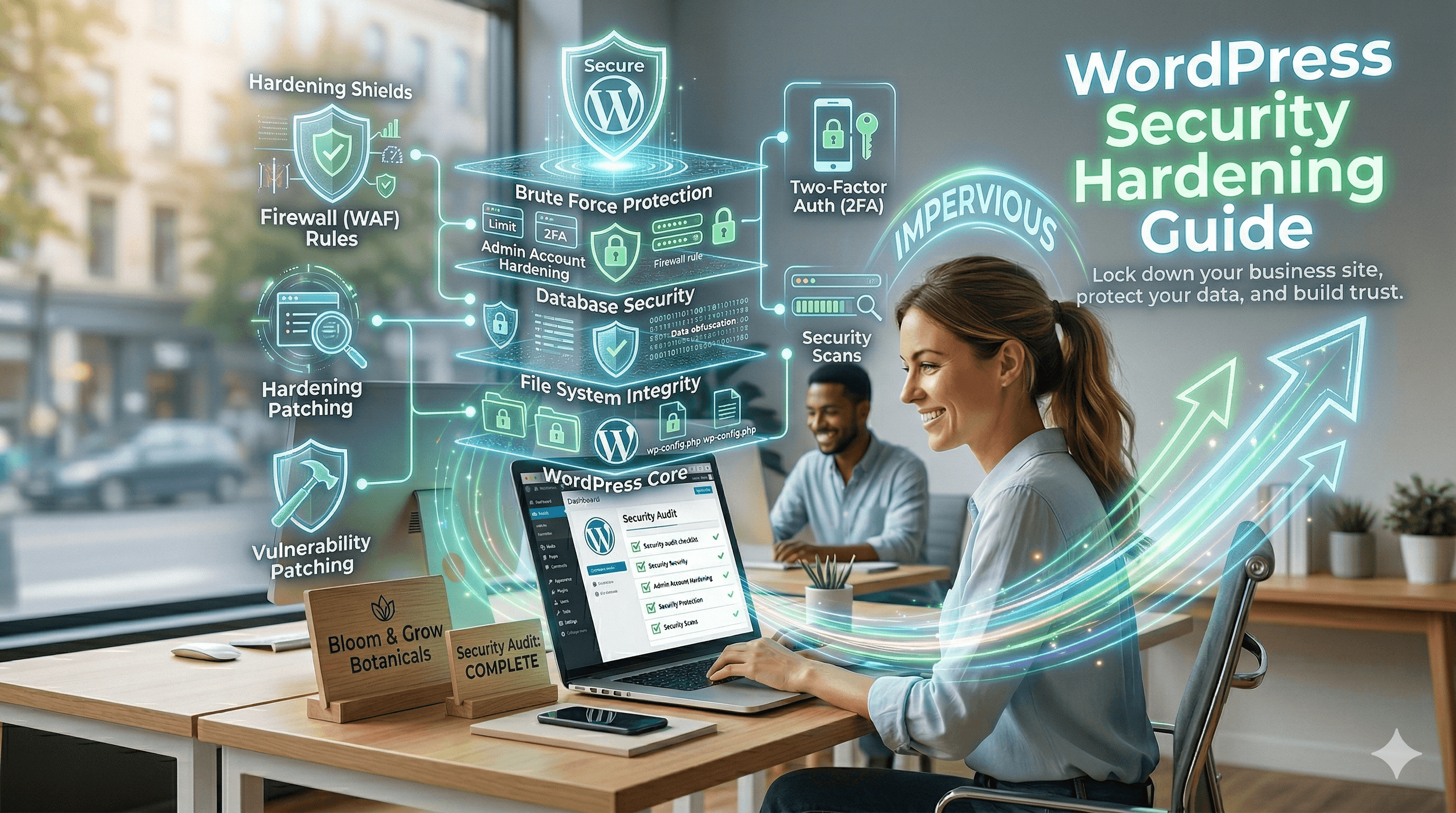
WordPress is the most popular content management system in the world, and that popularity makes it the most targeted. Automated bots scan the internet constantly, looking for WordPress sites with outdated plugins, weak passwords, and default configurations. When they find one, the results range from defaced pages and spam injections to stolen customer data and complete site takeovers.
The good news is that WordPress itself is quite secure when properly configured. The vast majority of WordPress hacks exploit known vulnerabilities in outdated plugins, weak passwords, and misconfigured hosting environments. All of these are preventable with the right setup and maintenance habits.
This guide covers why WordPress sites get hacked, how to harden your installation against the most common attack vectors, which security plugins to use, how to manage user access safely, and how to monitor your site for threats.
Why WordPress Sites Get Hacked
Understanding how attacks happen helps you prioritize your defenses. The most common attack vectors for WordPress sites follow predictable patterns.
Outdated plugins and themes. This is the number one cause of WordPress hacks. When a plugin developer discovers a vulnerability and releases a patch, the vulnerability details often become public. Attackers then scan the internet for sites still running the unpatched version. If your plugins are weeks or months behind on updates, your site is exposed to every vulnerability discovered during that period.
Weak passwords. Brute force attacks try thousands of username/password combinations against your login page. If any account on your site uses a weak or commonly used password, it is only a matter of time before an attacker gets in. This is why strong passwords are essential for protecting your business accounts.
Compromised hosting environments. On cheap shared hosting, a vulnerability in one website can sometimes expose other sites on the same server. Insecure FTP connections, outdated PHP versions, and misconfigured server settings all create opportunities for attackers.
Nulled (pirated) themes and plugins. Free downloads of premium themes and plugins are almost always bundled with malware. Never install a theme or plugin from an unofficial source.
Lack of monitoring. Many site owners do not realize they have been hacked until weeks or months later, when Google flags their site as dangerous or customers report strange behavior. By that time, the damage is extensive. The reality is that small business websites get hacked every day, and most owners are caught off guard.
Hardening Your WordPress Installation
Hardening means reducing your site's attack surface by eliminating unnecessary features, securing configuration files, and making it harder for attackers to exploit common weaknesses.
Change the Default Login URL
The default WordPress login page is at /wp-admin or /wp-login.php. Every bot on the internet knows this. Changing the login URL does not prevent determined attackers, but it eliminates the vast majority of automated brute force attempts. The WPS Hide Login plugin changes your login URL with a single setting. Choose something unique that is not easily guessed.
Limit Login Attempts
By default, WordPress allows unlimited login attempts. This means an attacker can try thousands of password combinations without being blocked. Install a plugin like Limit Login Attempts Reloaded or use the login protection feature in your security plugin to lock out IP addresses after a set number of failed attempts (three to five is reasonable).
Disable File Editing
WordPress includes a built-in code editor that lets administrators edit theme and plugin files directly from the dashboard. If an attacker gains admin access, this editor lets them inject malicious code instantly. Disable it by adding this line to your wp-config.php file:
define('DISALLOW_FILE_EDIT', true);
You can still edit files via FTP or your hosting file manager when needed. Removing the dashboard editor eliminates one easy path for attackers.
Secure wp-config.php
Your wp-config.php file contains your database credentials and security keys. Protect it by moving it one directory above your WordPress installation (WordPress will still find it automatically) or by adding rules to your .htaccess file that deny all web access to the file:
<files wp-config.php>
order allow,deny
deny from all
</files>
Also make sure your wp-config.php file has the correct permissions. It should be set to 440 or 400, which prevents other users on the server from reading it.
Update Security Keys
WordPress uses security keys and salts in wp-config.php to encrypt information stored in cookies. If you have never changed them (or suspect your site has been compromised), generate new keys at api.wordpress.org/secret-key/1.1/salt/ and replace the existing keys in your wp-config.php file. This forces all logged-in users to re-authenticate.
Disable XML-RPC
XML-RPC is a WordPress feature that allows external applications to interact with your site. It is also a common target for brute force and DDoS attacks. Unless you specifically use it (for the WordPress mobile app or Jetpack), disable it. You can do this with a simple plugin like Disable XML-RPC or by adding a rule to your .htaccess file.
Set Correct File Permissions
Incorrect file permissions can allow attackers to modify your files or execute malicious code. The standard WordPress file permissions are 755 for directories, 644 for files, and 440 or 400 for wp-config.php. Your hosting provider may have specific recommendations, so check their documentation. Never set any file or directory to 777 (world-writable).
Disable Directory Browsing
By default, some servers allow visitors to browse your directory structure by navigating to a folder URL. This reveals your plugin list, file structure, and potentially sensitive information. Disable it by adding this line to your .htaccess file:
Options -Indexes
Security Plugins Compared
A WordPress security plugin provides firewall protection, malware scanning, login security, and activity monitoring. Here are the leading options for small businesses.
Wordfence
Wordfence is the most popular WordPress security plugin with over 4 million active installations. The free version includes a web application firewall (WAF), malware scanner, login security with two-factor authentication, and real-time traffic monitoring. The premium version ($119/year) adds real-time firewall rules, real-time malware signatures, and country blocking.
Wordfence's strength is its comprehensive approach and detailed security dashboard. Its weakness is that it can impact site performance, particularly the live traffic monitoring feature on high-traffic sites.
Sucuri Security
Sucuri offers a free WordPress plugin for activity auditing, file integrity monitoring, remote malware scanning, and security hardening. The real power comes with Sucuri's paid firewall service ($199.99/year for the basic plan), which acts as a cloud-based WAF that filters malicious traffic before it reaches your server.
Sucuri's cloud firewall is arguably more effective than Wordfence's application-level firewall because it stops attacks at the network edge. However, the higher price point makes it better suited for businesses that can justify the investment.
iThemes Security (Solid Security)
iThemes Security (recently rebranded as Solid Security) offers 30+ security hardening features in its free version, including brute force protection, file change detection, and database backups. The Pro version ($99/year) adds two-factor authentication, scheduled malware scanning, and password expiration policies.
Which Should You Choose?
For most small businesses, Wordfence's free version provides the best balance of protection and cost. If your budget allows, Sucuri's cloud firewall offers superior protection. iThemes Security is a solid third option, particularly if you prefer its interface. The most important thing is to install one security plugin and configure it properly. For a broader perspective on website security practices beyond WordPress, see our comprehensive guide on website security for small businesses.
User Management Best Practices
Poor user management is one of the most overlooked security vulnerabilities in WordPress.
Use the Principle of Least Privilege
Every user account should have the minimum permissions necessary for that person's role. WordPress has five default roles: Administrator (full access to everything), Editor (can manage all content but not settings or plugins), Author (can publish and manage their own posts), Contributor (can write and edit their own posts but not publish), and Subscriber (can only manage their own profile).
Give the Administrator role only to people who genuinely need to install plugins, manage settings, and maintain the site. Content writers should be Authors or Contributors. Guest bloggers should be Contributors.
Enforce Strong Passwords
WordPress 4.3 and later encourages strong passwords by default, but it does not enforce them. Security plugins like Wordfence and iThemes Security can require strong passwords for all user roles. At minimum, require strong passwords for Administrator and Editor accounts.
Enable Two-Factor Authentication
Two-factor authentication (2FA) adds a second verification step to the login process, typically a code from a mobile app like Google Authenticator or Authy. Even if an attacker obtains a user's password, they cannot log in without the second factor. Enable 2FA for all administrator accounts at minimum. Wordfence, iThemes Security, and the standalone WP 2FA plugin all offer this feature.
Audit User Accounts Regularly
Review your user list quarterly. Remove accounts for people who no longer need access. Deactivate accounts that have not logged in for 90 days. Check that no unauthorized accounts have been created, which could indicate a previous compromise.
Never Use "admin" as a Username
If your site has an account with the username "admin," create a new administrator account with a unique username, log in with the new account, and delete the "admin" account (reassigning its content to the new account). Attackers specifically target the "admin" username in brute force attacks.
Monitoring and Incident Response
Security is not a set-it-and-forget-it task. Ongoing monitoring catches problems early, before they cause serious damage.
Activity Logging
Install an activity log plugin (WP Activity Log is the most popular) to track everything that happens on your site: logins, failed login attempts, content changes, plugin installations, setting modifications, and user account changes. Review this log weekly for anything unusual.
Uptime Monitoring
Use a free uptime monitoring service like UptimeRobot or Better Uptime to alert you immediately if your site goes down. Unexpected downtime can be an early indicator of a security incident.
File Integrity Monitoring
Your security plugin's malware scanner compares your WordPress core files, plugin files, and theme files against known-good versions. Run these scans at least weekly. If modified files are detected, investigate immediately.
What to Do If You Are Hacked
If you discover your site has been compromised, act quickly. Take the site offline or put it in maintenance mode. Change all passwords (WordPress admin, hosting, FTP, database). Scan for and remove malware using your security plugin or Sucuri's free scanner. Restore from a clean backup if available. Update all plugins, themes, and WordPress core. Review and harden your security configuration. Submit your site for review in Google Search Console if it was flagged. For a complete recovery walkthrough, refer to our guide on how to recover a hacked website.
Building a Security Routine
WordPress security is not a one-time project. Build these habits into your regular site management routine.
Weekly: Run a malware scan. Review your activity log for unusual behavior. Check that your backup system completed successfully.
Monthly: Update all plugins, themes, and WordPress core (following safe update procedures). Review your user list. Test your backup restoration process.
Quarterly: Audit your installed plugins and remove any you no longer use. Review your security plugin configuration. Update all passwords for admin accounts. Check that your PHP version is current and supported.
Annually: Review your hosting provider's security features. Evaluate whether your security plugin still meets your needs. Update your incident response plan.
The effort required to maintain WordPress security is modest compared to the cost of recovering from a hack. A few hours of proactive maintenance each month protects your website, your customers' data, and your business reputation.